
Monday, June 20, 2016

Monday, June 13, 2016
Scratch(Up) - 9 - Pinwheel
Alrighty!
Back again with the final Scratch project. Kind of sad to see this program go but honestly, I would probably get sick of this thing if we had to do more because I've had my fair share with this program.
This is the Pinwheel thing in which we tap the pinwheel to make it go faster. If you've played my quiz game, you'll recognize the penguin the on the 3rd pinwheel. This is just a simple thing to finish off scratch. Just tap the pinwheels to make them go faster. So, yeah, Scratch has been fun but it's time to move on and it's almost the end of the year anyway! So, goodbye to all the Scratch fans out there.
Back again with the final Scratch project. Kind of sad to see this program go but honestly, I would probably get sick of this thing if we had to do more because I've had my fair share with this program.
This is the Pinwheel thing in which we tap the pinwheel to make it go faster. If you've played my quiz game, you'll recognize the penguin the on the 3rd pinwheel. This is just a simple thing to finish off scratch. Just tap the pinwheels to make them go faster. So, yeah, Scratch has been fun but it's time to move on and it's almost the end of the year anyway! So, goodbye to all the Scratch fans out there.
Scratch(Up) - 8 - Maze
Alrighty!
Second to last thing being created in Scratch. This is a maze game in which you have to get away from Shrek and get to the ball.
Music : Night Music (By: Nhumo)
Instructions :
1. Click green flag to start.
2. Use arrow keys to move,
3. Don't let Shrek touch you or it's all ogre.
4. Get to the Ball.
5. Have fun!
Second to last thing being created in Scratch. This is a maze game in which you have to get away from Shrek and get to the ball.
Music : Night Music (By: Nhumo)
Instructions :
1. Click green flag to start.
2. Use arrow keys to move,
3. Don't let Shrek touch you or it's all ogre.
4. Get to the Ball.
5. Have fun!
Saturday, June 11, 2016
Scratch(Up) - 7 - Batty Bat
Alrighty!
So, this time in Scratch, I had to make a game like flappy bird. This game is also one of my favourites because I added my own things to this, such as different sprites. It's called "Batty Bat" and it even has animation when it begins. This is a great program so far! Have fun!
Music : Genesis (By : SDDx)
Instructions :
1. Press Green flag to start.
2. Press Spacebar to ascend.
3. Try not to hit the trees.
4. Have fun!
So, this time in Scratch, I had to make a game like flappy bird. This game is also one of my favourites because I added my own things to this, such as different sprites. It's called "Batty Bat" and it even has animation when it begins. This is a great program so far! Have fun!
Music : Genesis (By : SDDx)
Instructions :
1. Press Green flag to start.
2. Press Spacebar to ascend.
3. Try not to hit the trees.
4. Have fun!
Wednesday, June 8, 2016
Scratch(Up) - 6 - Shooting Game - "Haunted Castle"
Alrighty,
So I'm back with another Scratch created game. This time it's a target shooter called the Haunted Castle. It's a game where you must use your void powers to destroy the ghouls. This has been a very fun program and I'm glad to say that I'm still not bored with it even though we follow tutorials but the thing that makes this fun is that we get to personalize our games and actually call them our own. I hope you enjoy.
Music : Down (By; Cult to follow)
Instructions :
1. Click green flag to start
2. Use the mouse to control the target.
3. Right click to shoot void at the Ghouls
4. Don't let the ghouls get to the other side.
5. Have fun!
Tuesday, June 7, 2016
Scratch(Up) - 5 - Platform Game - Pokemon Platformer
Alrighty,
Back here again with another scratch project which I also worked pretty hard on. This one is a platform game but instead of making it simple I turned it into a Pokemon platformer in which you control the pokeball and you have to catch 3 Pokemon in 3 separate levels. I have also have the backgrounds corresponding to each Pokemon you have to catch. The first one is Pikachu, so the background is lightning because he's an electric type, Next, is a flame background because you are trying to catch Charizard who is a fire type. Finally, you have to catch sceptile who is a grass type so I have sort a forest background. I put a lot of time into this, so I hope you enjoy.
Music : Pokemon Theme song (original one)
Instructions :
1. Use left and right arrow keys to go left and right.
2. Use the up arrow key to go up. There's a gravity effect, so mess around with it until you get the hang of it.
3. For the second level, don't touch the ground.
4. For, the final level, you can't touch the sides or the bottom.
5. Have fun.
Back here again with another scratch project which I also worked pretty hard on. This one is a platform game but instead of making it simple I turned it into a Pokemon platformer in which you control the pokeball and you have to catch 3 Pokemon in 3 separate levels. I have also have the backgrounds corresponding to each Pokemon you have to catch. The first one is Pikachu, so the background is lightning because he's an electric type, Next, is a flame background because you are trying to catch Charizard who is a fire type. Finally, you have to catch sceptile who is a grass type so I have sort a forest background. I put a lot of time into this, so I hope you enjoy.
Music : Pokemon Theme song (original one)
Instructions :
1. Use left and right arrow keys to go left and right.
2. Use the up arrow key to go up. There's a gravity effect, so mess around with it until you get the hang of it.
3. For the second level, don't touch the ground.
4. For, the final level, you can't touch the sides or the bottom.
5. Have fun.
Sunday, June 5, 2016
Friday Post # 8 (June 5/2016)
What I did :
This week in Info-tech 11, I used scratch. I made many things games such as shooting games, quiz games and brick and paddle games. This program is definitely one of my favourites out of the many that we have used because you have so much freedom with this. It's also one of the simplest things to use because of all the features and tutorials people have made. After our second day in scratch, I was adding all sorts of special and unique things in my quiz game. That's what I did this week in Info-tech 11.
What I learned :
I also learned many things this week as well. Using scratch made it really simple to make your own games and add your own unique features to them. For my quiz game, I even added a unique "cutscene" to it after you get a few questions right. I also learned about broadcasting and receiving so you can have something appear or disappear after something happens. Overall, this is a great program and I can't wait to make my own unique game in it because you have so many possibilities.
How to create this :
1. You want to create three sprites.
2. Add the following to the sprite you want to have move.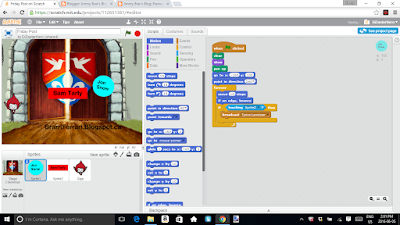
3. Next, do not add anything to the sprite that you want to have stay still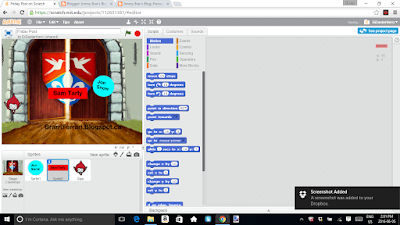
4. Finally, just add the following code to the sprite that creates the box.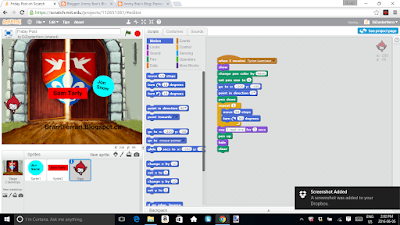
That's it!
- Jimmy Brar
This week in Info-tech 11, I used scratch. I made many things games such as shooting games, quiz games and brick and paddle games. This program is definitely one of my favourites out of the many that we have used because you have so much freedom with this. It's also one of the simplest things to use because of all the features and tutorials people have made. After our second day in scratch, I was adding all sorts of special and unique things in my quiz game. That's what I did this week in Info-tech 11.
What I learned :
I also learned many things this week as well. Using scratch made it really simple to make your own games and add your own unique features to them. For my quiz game, I even added a unique "cutscene" to it after you get a few questions right. I also learned about broadcasting and receiving so you can have something appear or disappear after something happens. Overall, this is a great program and I can't wait to make my own unique game in it because you have so many possibilities.
How to create this :
1. You want to create three sprites.
2. Add the following to the sprite you want to have move.

3. Next, do not add anything to the sprite that you want to have stay still

4. Finally, just add the following code to the sprite that creates the box.

That's it!
- Jimmy Brar
Scratch(Up) - 4 - Paddle and Brick game
Brick and Paddle game :
The fourth Scratch creation. The Brick and Paddle game. I put my URL on the paddle itself to add an original thing to this game.
Instructions :
1. Click the green flag to start the game.
2. Try to hit all the bricks by deflecting the ball off the paddle.
3. Have fun.
The fourth Scratch creation. The Brick and Paddle game. I put my URL on the paddle itself to add an original thing to this game.
Instructions :
1. Click the green flag to start the game.
2. Try to hit all the bricks by deflecting the ball off the paddle.
3. Have fun.
Thursday, June 2, 2016
Scratch(Up) - 3 - Quiz Game - "World Trivia Championship Games" M8
Alrighty, we're back!
So, first things first. I really put a lot of time into this game. We followed a Youtube tutorial but after learning the basic concept of how to use this, I went off on the mainstage. What I'm trying to say is that, I went above and beyond what the average person would do. So I hope you enjoy it.
Things I did differently :
Well, the things I did differently were that I added backdrops for every question. The backdrops were based off the question which it more interesting. I also added some pretty sweet music. Next, I made 6 questions and after you answer a few, there is nice little "cutscene" in there just for the LOLZ. This is more of a story game than a trivia game though which I prefer because it keeps you more engaged. The host, the penguin, isn't just a sprite but is an emotional character who changed mentalities based on your answer. I also have a few other characters involved in this which is one more thing that makes a step above the average quiz game. And that seems to be about it... Thanks!
Music : Everywhere we go (By: Sb tracks)
Instructions :
The instructions are fairly simple.
1. Press the green flag to start.
2. Enter your name when asked.
3. Instead of typing in the letter to answer questions, you must enter in the answer itself.
ex. A: Mario B:Luigi C: Sonic D: Shadow
Let's say the answer is D: Shadow, you don't enter in "D." You enter in "Shadow" to continue.
4. That's about it, except if you get something wrong, you must restart.
5. Finally, the very final question does not have multiple choice, but I can guarantee you that it is in the quiz.
Have fun!
So, first things first. I really put a lot of time into this game. We followed a Youtube tutorial but after learning the basic concept of how to use this, I went off on the mainstage. What I'm trying to say is that, I went above and beyond what the average person would do. So I hope you enjoy it.
Things I did differently :
Well, the things I did differently were that I added backdrops for every question. The backdrops were based off the question which it more interesting. I also added some pretty sweet music. Next, I made 6 questions and after you answer a few, there is nice little "cutscene" in there just for the LOLZ. This is more of a story game than a trivia game though which I prefer because it keeps you more engaged. The host, the penguin, isn't just a sprite but is an emotional character who changed mentalities based on your answer. I also have a few other characters involved in this which is one more thing that makes a step above the average quiz game. And that seems to be about it... Thanks!
Music : Everywhere we go (By: Sb tracks)
Instructions :
The instructions are fairly simple.
1. Press the green flag to start.
2. Enter your name when asked.
3. Instead of typing in the letter to answer questions, you must enter in the answer itself.
ex. A: Mario B:Luigi C: Sonic D: Shadow
Let's say the answer is D: Shadow, you don't enter in "D." You enter in "Shadow" to continue.
4. That's about it, except if you get something wrong, you must restart.
5. Finally, the very final question does not have multiple choice, but I can guarantee you that it is in the quiz.
Have fun!
Tuesday, May 31, 2016
Scratch(Up) - 2 - Basic game - "Defend the Keep M8s"
Alright so this a game I created in Scratch. It's called "Defend the Keep M8s" and is essentially a game where you control the dragon and must protect the castle and not let any of knights in.
These are the instructions.
Press the Green Flag to start.
Then use the arrow keys to move the dragon around. Use the "A" key to turn the dragon left and use the "S" key to turn the dragon right. Use the spacebar to shoot out flaming fireballs of doom at the knights attacking the castle. Your score will be shown at the top left. It goes up by one. If a knight touches you, you must restart.
Have fun.
Scratch(Up) - 1 - Shapes tutorial
Alrighty, the first Scratch thing we did was make random shapes.
Instructions :
Just click the green flag.... yeah....
Instructions :
Just click the green flag.... yeah....
Wednesday, May 25, 2016
SketchUp - 8 - Park
Image 1 : Welcome to the most dangerous park

Image 2 : Barbed wire slide and bridge

Image 3 : Glassed floor swingset

Image 4 : Sandbox may contain cobra

Image 5 : Cobra sandbox


Image 2 : Barbed wire slide and bridge

Image 3 : Glassed floor swingset

Image 4 : Sandbox may contain cobra

Image 5 : Cobra sandbox

Friday, May 20, 2016
Friday Post # 7 (May 20/2016)
What I did :
This week in info-tech 11, we used SketchUp. We made a pool and added patio chairs, beach balls, and rubber duckies. After that we were supposed to add a pre-made slide with steps and import that to our already made pool. After all that, we finally went and made a fence. After making the fence, we were to export and import it into our pool world, That is all we did this week.
What I learned :
This week in info-tech 11, we learned a lot in SketchUp. I learned about components and groups which could be made to turn something into one thing rather than having it be all different parts. I also learned how to add proper measurements to our things we were making. Although measurements were interesting, the main thing were the groups and components because they helped make fences and tables. That is what we learned this week info-tech 11.
4 tools :
Push and pull tool - To make things bulge out. We used this to make our house 3D and actually have volume.

Rectangle tool - Our most used tool to make houses, pools, etc. This was used to make the base of our creations.

Rotate tool - To rotate things around or sideways. We used this to curve in chairs or to make things face the other way if we wanted to.

Scaling tool - To change the size of things. We used this when importing our basic house onto our table because the house was too big.

4 tips :
1. The first major tip I have is that you should be using the scroll wheel to adjust your view.
Zoom in and out by using the wheel.
To rotate around, hold down the scroll wheel and move your mouse around.
Finally, if you want to pan your screen, hold down the wheel while holding down the shift key.
2. If you want to be exact use measurements instead of mindlessly making rectangles and squares.

3. Use the measurement tool to draw lines perfectly and to be precise,

4. Do not make components if you don't want every single one of those components to be coloured the same colour - I learned that the hard way.
- Jimmy Brar
Thursday, May 19, 2016


Tuesday, May 17, 2016


Monday, May 16, 2016

Friday, May 13, 2016


Thursday, May 12, 2016


Wednesday, May 11, 2016


Monday, May 9, 2016


Subscribe to:
Posts (Atom)